
Limited Access to Configurations (Subscriber Users)
What’s New
We’ve added more flexibility to how Subscriber users can access the Configurations area in Jarvis. Previously, Configurations access was either access to everything, or nothing at all. This made it difficult for teams, especially larger groups and DSOs, to safely delegate tasks like setting goals or managing providers without opening access to unrelated or sensitive settings. Now, you can grant access to specific Configuration tabs , based on what a user has been tasked to do. Users designated as “Subscriber” can be given access to individual sections within Configurations, instead of the entire module.
Things to note:
- Permissions are user-specific
- Changes are saved automatically
- Users without permission will see an Unauthorized Access message if they try to access restricted areas
Why This Matters
This update helps reduce bottlenecks, improves security, and allows teams to move faster without giving users more access than they need. You can now confidently delegate configuration tasks while maintaining control over the rest of your system.
Available Configuration Sections
You can enable access to any of the following tabs:
- Basic, Email Settings
- Provider
- Goals
- Reminders
- Calendar
- Code Mapping
- KPI Settings
- RCM Mapping
- End of Day (EOD) Settings
- Huddle Settings
- Snapshot Settings
How to Set It Up
- From any module within Jarvis, in the top-right corner dropdown menu, Go to Configurations.

- Open Users

- Select the name of User who is set as a Subscriber, and you would like to give limited configuration access.
- Scroll to the bottom of the screen.
- Turn on the toggles for the Configuration sections you want them to grant access. Then click Save.
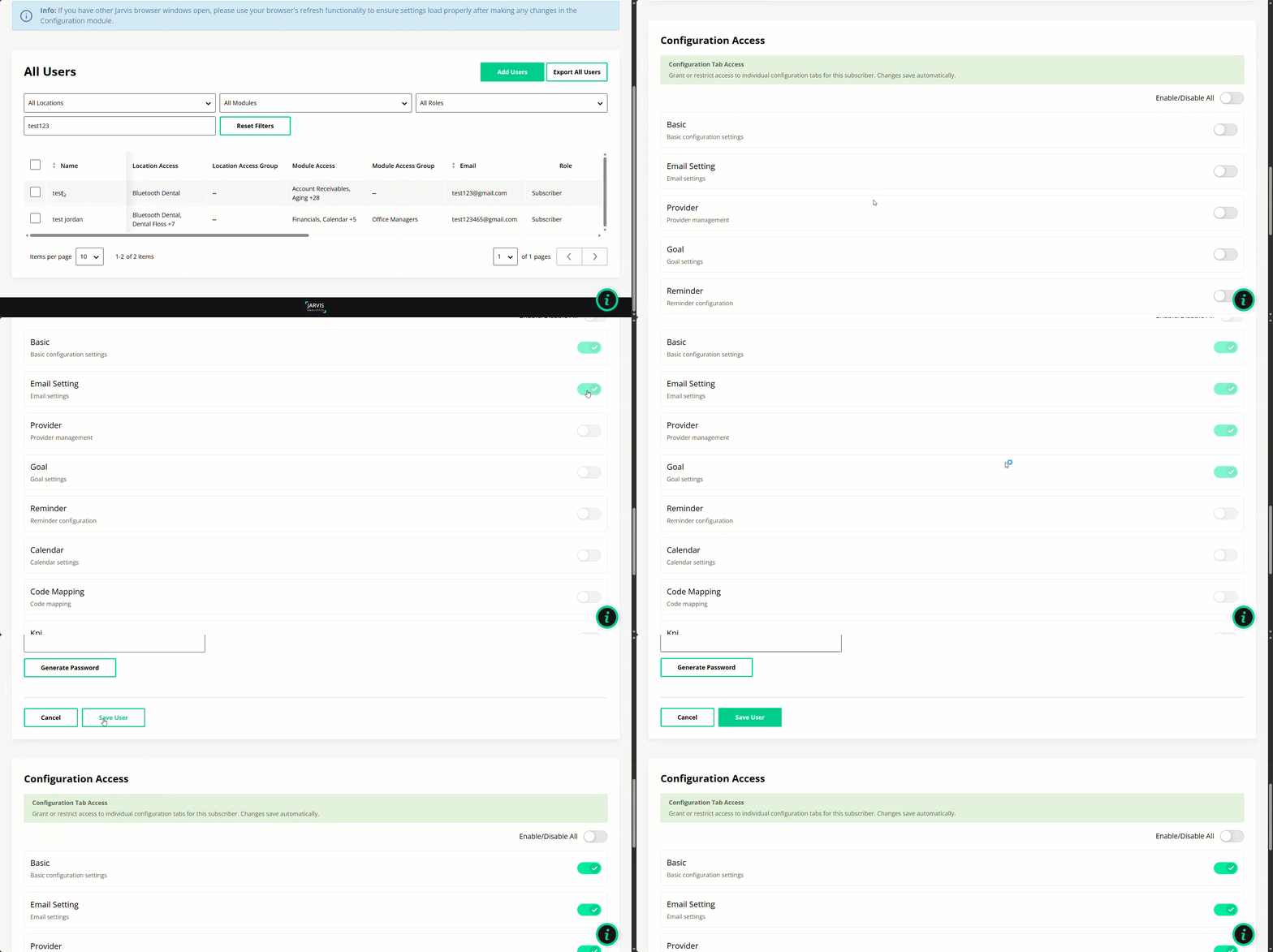
The Subscriber user can now access their allowed Configuration sections.
Common Use Cases
Here are a few ways you can use this feature:
- Onboarding new locations or DSOsTemporarily allow team members to set up goals, providers, or calendars during onboarding—without giving full system access.
- Code Mapping ownershipAssign a specific person to manage Code Mapping without exposing financial, KPI, or system-level settings.
- Office-level updatesAllow office staff to update reminders, calendars, or goals while keeping advanced configurations locked down.
- Cleaner role separationEnsure each user only sees and edits what’s relevant to their job—nothing more, nothing less.