
Denticon and Jarvis : A report guide
Introduction
The following sections highlight how the modules in Jarvis Analytics populate their data with Denticon. They will go over how to compare data from Denticon reports to data you see Jarvis Analytics, so you can better understand how your data is pulled from your PMS and populated in Jarvis.
Note: Data for Denticon PMS is delayed 1 day so any issues regarding the current date should be taken into account.
Aging (Accounts Receivable)
To create the Aging report in Denticon that matches Jarvis’ Aging module, first select your office. Then go to Monthly Reports > Aging Report by Office.

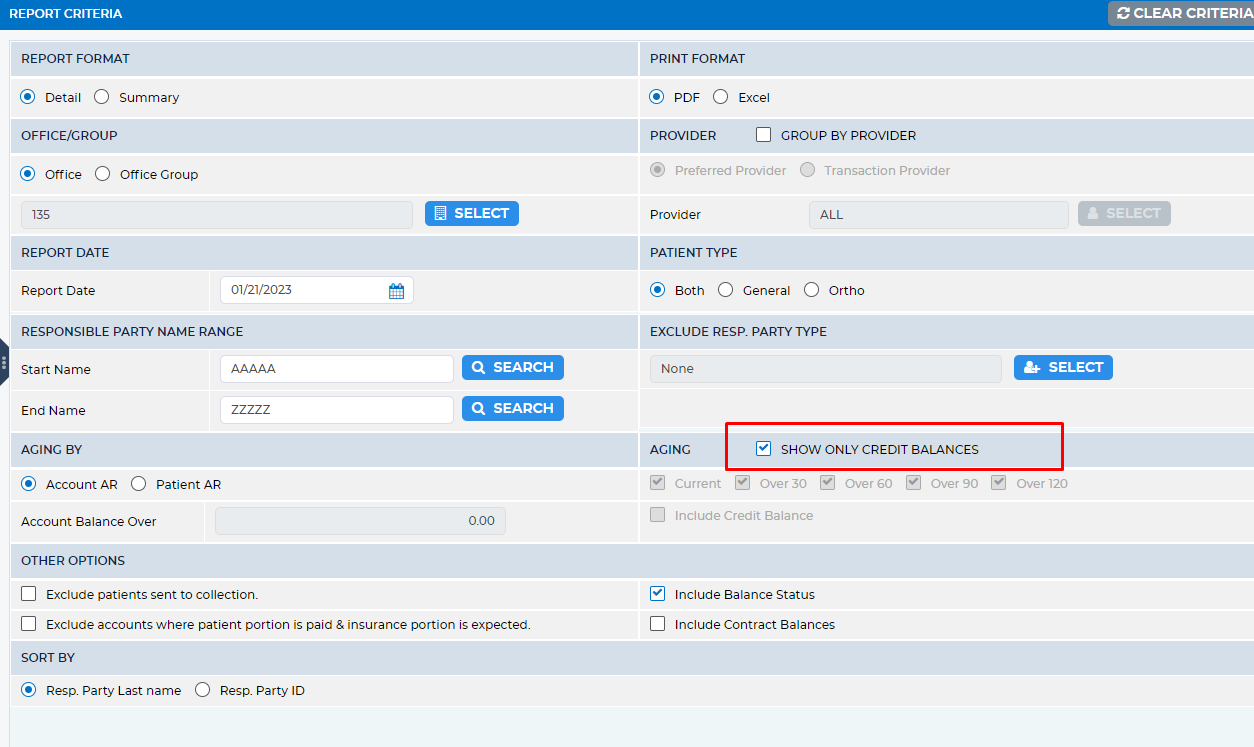
From the window that appears, select the following criteria:
- Date (please note that Denticon has a 1 day delay so it’s better to test past dates)
- Aging buckets
- For the Include balance status, you have three choices for your settings:
- For Include Credits, check the Include Balance Status

- For Exclude Credits, uncheck Include Credit Balance

- For Credits Only, check SHOW ONLY CREDIT BALANCES
- For Include Credits, check the Include Balance Status
How to print the report
After selecting criteria, click Print/Preview.
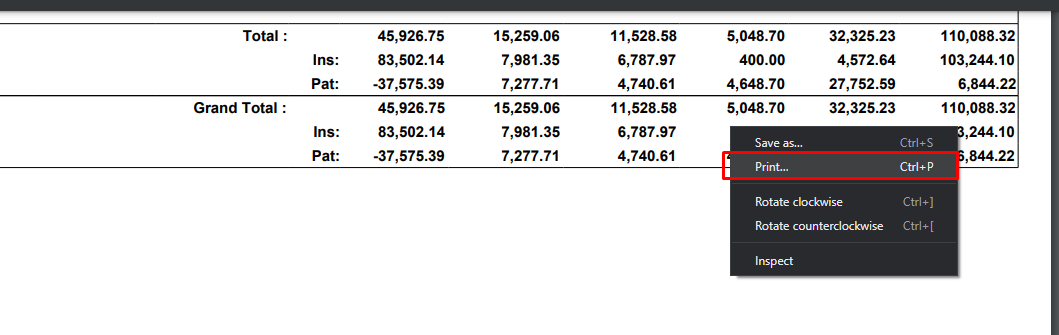
- Right-click and select Print.
- Or right-click and “Save as” to save as a PDF.
How to read the report
Open the report and scroll to where the total balances are found. The office buckets are equal to the current accounts and delinquent accounts. 
Adjustments (Office Total and Provider Total)
Denticon Adjustment is defaulted using the Production Adjustment. To create the report in Denticon that matches Jarvis’ Dashboard module, go to Reports > Daily Reports > Production Report. 
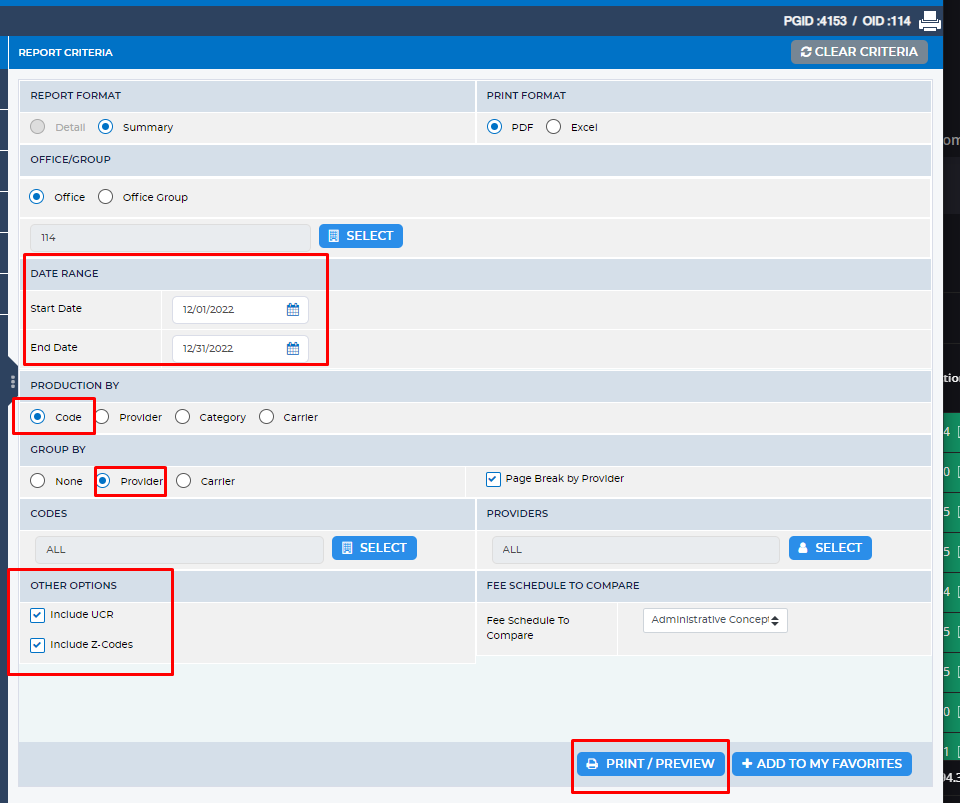
Set the following options:
- Date Range: Select Start Date and End Date
- Production By: Select Code
- Group By: Select Provider
- Other Options: Check Include UCR and Include Z-Codes
How to print the report
Click Print/Preview. If you choose this option, wait for the loading screen to disappear. You can also print as PDF by right-clicking and selecting “Save as”. 

How to Read the Report
| Denticon Production Report | Jarvis Equivalent |
|---|---|
| Grand Total > Charges | Total Office Gross Prod |
| Total Production Adjustments | Total Office Adjustment |
| (Grand Total > Charges) + (Total Production Adjustments) | Total Office Net Prod |
| (Provider Name) Charges + (Provider Name) Production Adjustment | Provider Total Production |
| (Provider Name) Production Adjustment | Provider Total Adjustment |

Collections (Office Total and Provider Total)
To create the report in Denticon that matches Jarvis’ Dashboard module, go to Reports > Daily Reports > Collection Report. Make sure to select the correct office. 
Set the following options:
- Date Range: Select Start Date and End Date
- Collection By: Select Provider
- Other Options: Check Include Adjustments (Collection)

How to print the report
Click Print/Preview. You can save the report by right-clicking and selecting “Save as” or clicking the print button and selecting “Print as PDF”. 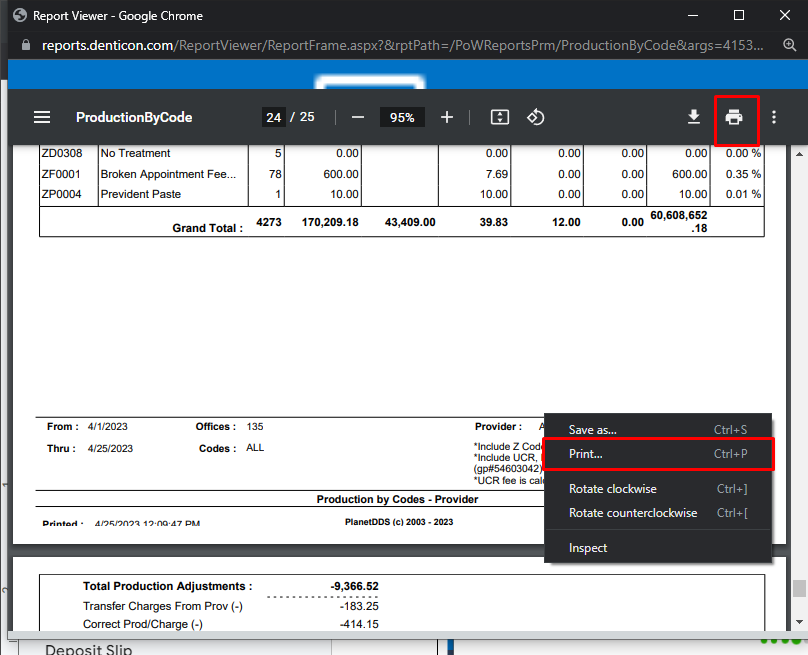
How to Read the Report
| Denticon Collection Report | Jarvis Dashboard Module Equivalent |
|---|---|
| Grand Total Collection + Grand Total Collection Adjustments | Total Office Collection |
| (Provider Name) Collection + (Provider Name) Collection Adjustment | Provider Total Collection |

Deposit Slip
To create the report in Denticon that matches Jarvis’ Deposit Slip module, go to Reports > Daily Reports > Deposit Slip. 
Set the following options:
- Date Range: Transaction Date (Start Date and End Date)
- Payment Types: Select All (Cash, Check, Credit Card, CareCredit, Direct Deposit, Internal Financing, None)
- Check Type: Select Both
- Other Options: Select Show Responsible Party

How to print the report
Click Print/Preview. You can save the report by right-clicking and selecting “Save as” or clicking the print button and selecting “Print as PDF”. 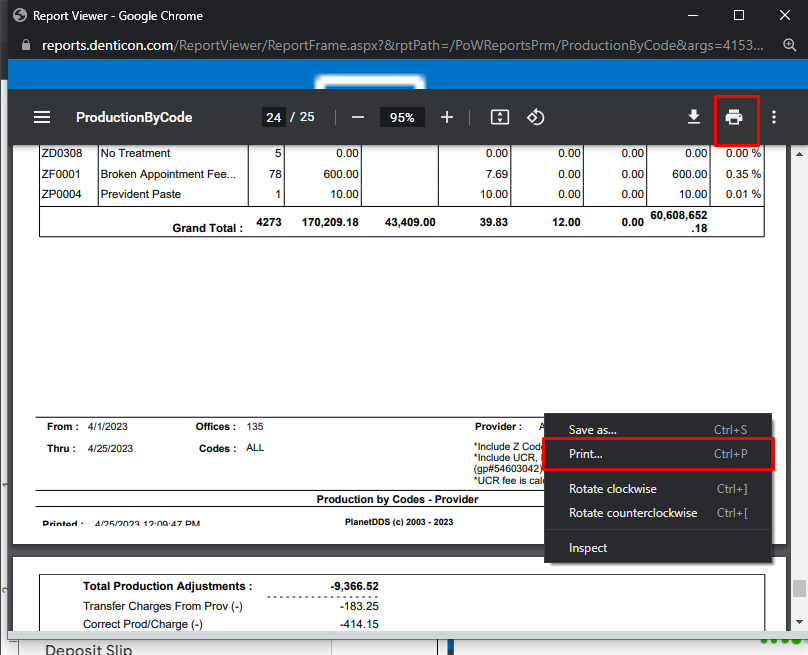
How to Read the Report
| Denticon Deposit Slip Report | Jarvis Equivalent |
|---|---|
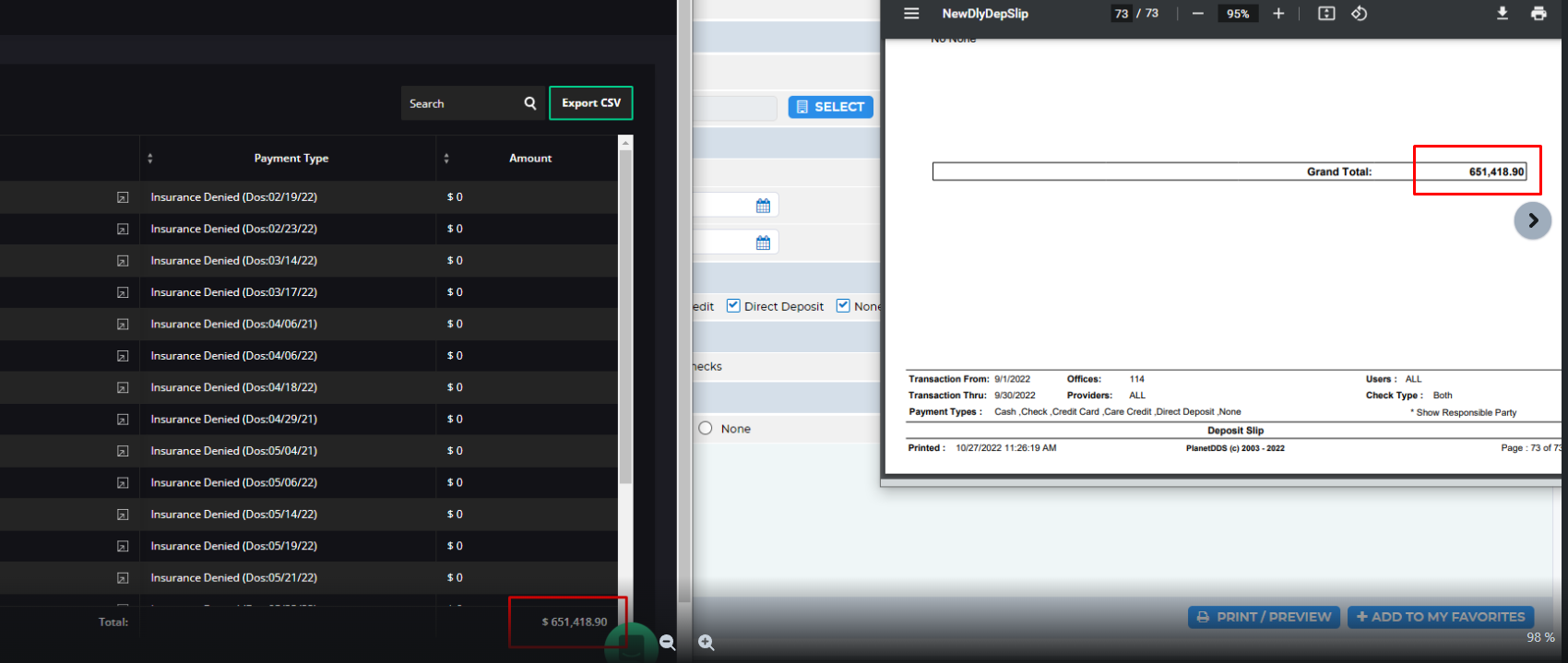
| Grand Total | Deposit Amount |
Gross and Net Production (Office Total and Provider Total)
To create the report in Denticon that matches Jarvis’ Dashboard module, go to Reports > Daily Reports > Production Report. 
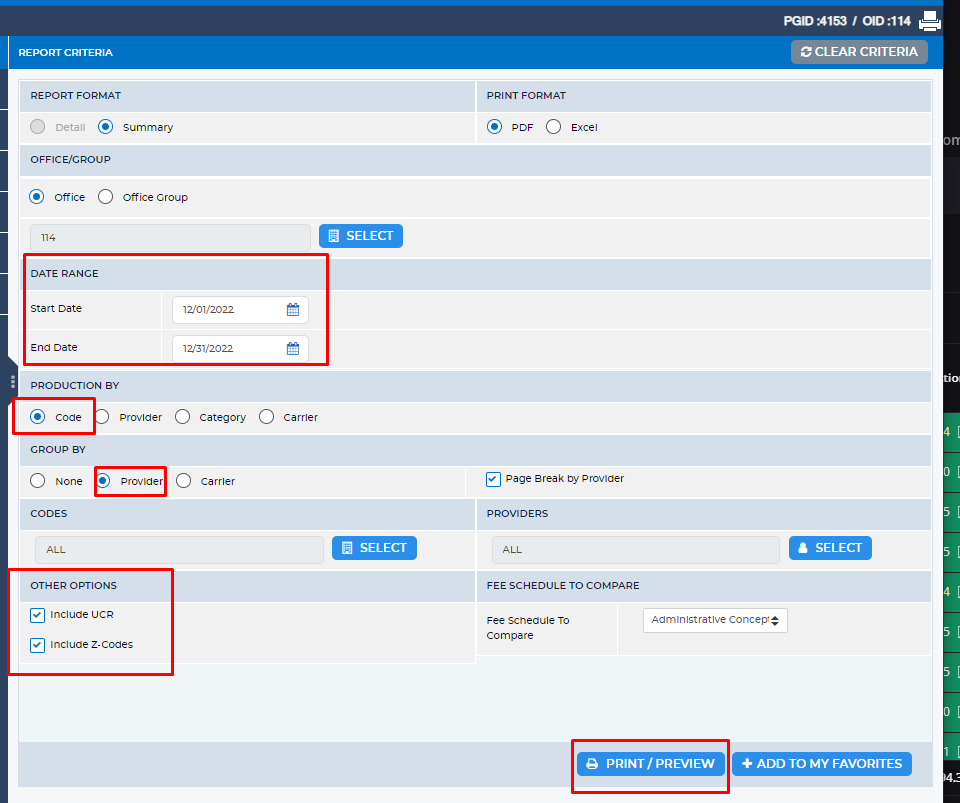
Set the following options:
- Date Range: Select Start Date and End Date
- Production By: Select Code
- Group By: Select Provider
- Other Options: Check Include UCR and Include Z-Codes
How to print the report
Click Print/Preview. You can save the report by right-clicking and selecting “Save as” or clicking the print button and selecting “Print as PDF”. 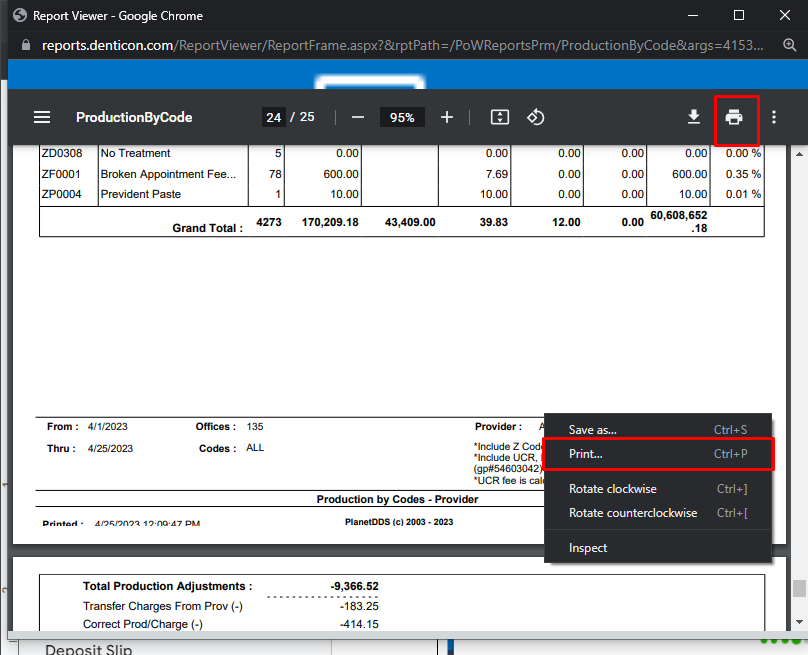
How to Read the Report
| Denticon Production Report | Jarvis Dashboard Equivalent |
|---|---|
| Grand Total > Charges | Total Office Gross Prod |
| Total Production Adjustments | Total Office Adjustment |
| (Grand Total > Charges) + (Total Production Adjustments) | Total Office Net Prod |
| (Provider Name) Charges + (Provider Name) Production Adjustment | Provider Total Production |
| (Provider Name) Production Adjustment | Provider Total Adjustment |

Patient Visits and New Patients
To create the report in Denticon that matches Jarvis’ Dashboard module, go to Reports > Monthly Reports > Executive Summary. 
Select the following criteria:
- Date Range: Select Start Date and End Date
- Group By: Select None (for office total values) or Provider (for provider values)

How to print the report
Click Print/Preview. You can save the report by right-clicking and selecting “Save as” or clicking the print button and selecting “Print as PDF”. 
How to Read the Report
| Denticon Executive Summary | Jarvis Dashboard Equivalent |
|---|---|
| Patient Visits | Patient Visits |
| New Patients by First Visit Date | New Patient Visits |
