
Cloud 9 and Jarvis: A report guide
Introduction
The following sections highlight how the modules in Jarvis Analytics populate their data with Cloud 9. They will walk you through how to compare data from Cloud 9 reports to the data you will see in your Jarvis Analytics modules so you can better understand how your data is pulled from your PMS and populated in Jarvis.
Important: Please pull all of the following reports before the beginning of the day, and you will need to have access to reports and Patient Ledger for Cloud 9.
To Print a report in Cloud 9
All the reports have the option to export the report as a PDF File. Click the cloud button and any desired options. Then click Acrobat PDF File. 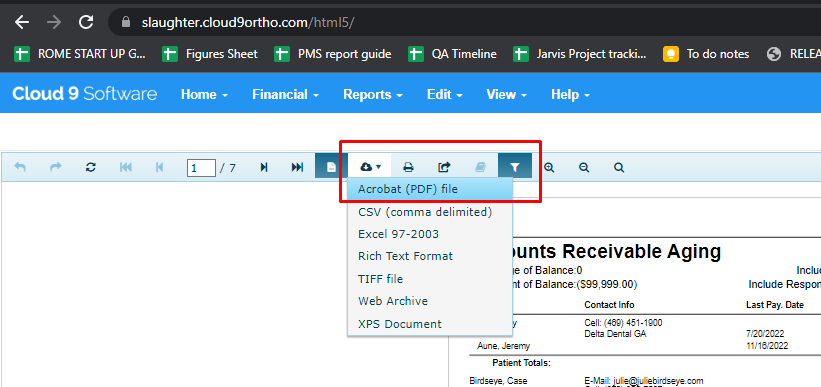
Aging (Accounts Receivable)
To create the Aging report in Cloud 9 that matches Jarvis’ Aging module, while on the main page of Cloud 9, go to Reports > Accounts Receivable Aging By Patient.

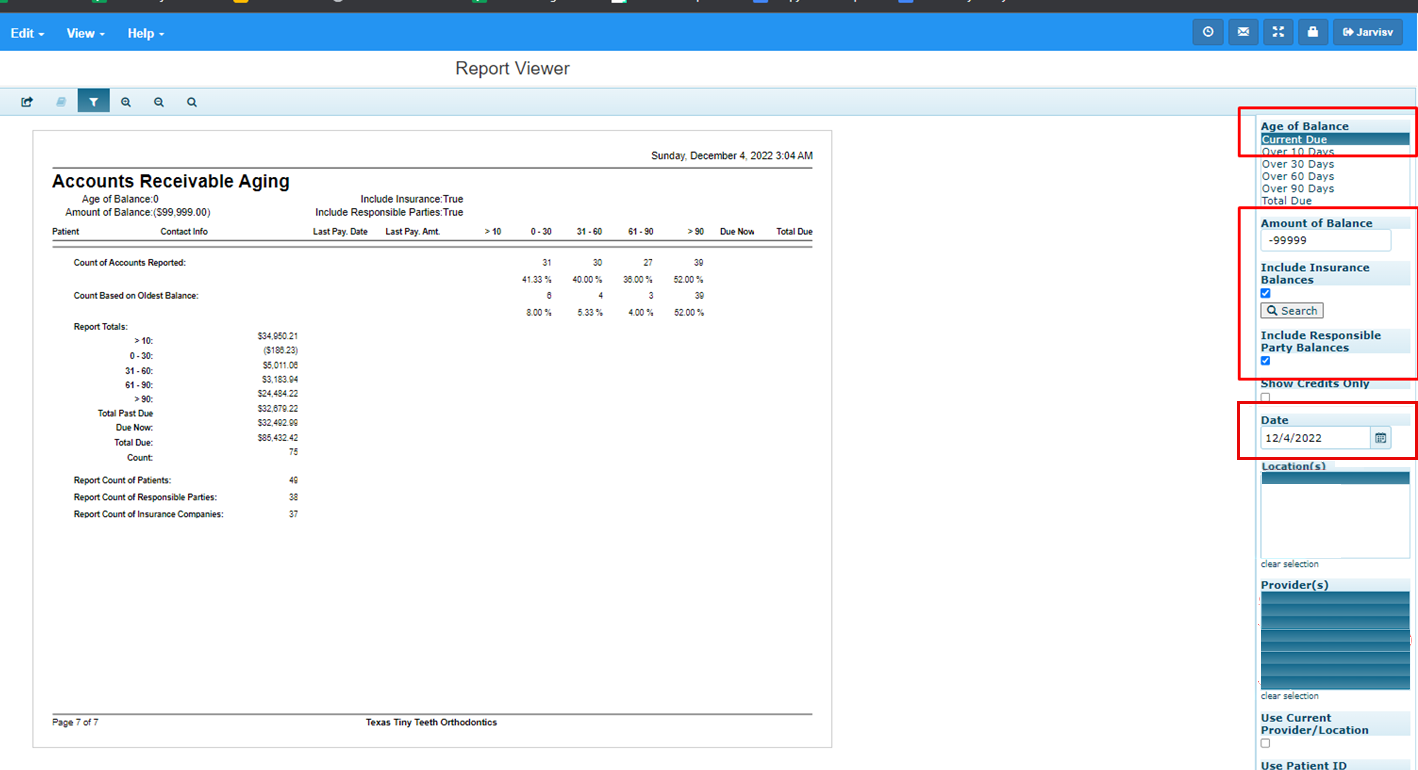
Once the window that appears, select the following criteria:
- Amount of balance: Set to -9999.
- Include Insurance Balances: Check this box.
- Include Responsible Party Balances: Check this box.
- Show credits only: Must be unchecked.
- Date: Must be the day before.
- Location: Select the correct location.
- Providers: Select “all providers”.
Alternative: Exclude Credits
To get the excluded credits:
- Amount of balance: set to 0
- Check: Include Insurance Balances
- Check: Include Responsible Party Balances
- Uncheck: Show credits only
- Date: The day before
- Select your location
- Select “all providers”
How to read the report after printing from Cloud 9
The aging report corresponds to the total office data per the following buckets:
Note: Data is one day delayed.
| Cloud 9 Aging Report | Jarvis Aging Module Equivalent |
|---|---|
| 0-30 section | Current 14 |
| 31-60 | Over 30 15 |
| 61-90 | Over 60 16 |
| >90 | Over 90 17 |
| Total A/R column in the report | Balance 18 |

Adjustments (Office Total and Provider Total)
To create the report in Cloud 9 that matches Jarvis’ Dashboard module, go to Reports > Production By Date Range.

Set the following options:
- Date Range: Enter the date range you will use.
- Include MTD and YTD totals: Check this box.
- Include provider Totals: Check this box.
- Chronological Daysheet: Check this box.
- Deposit Slip: Check this box.

How to print the report
Click the cloud button and select Acrobat PDF File. 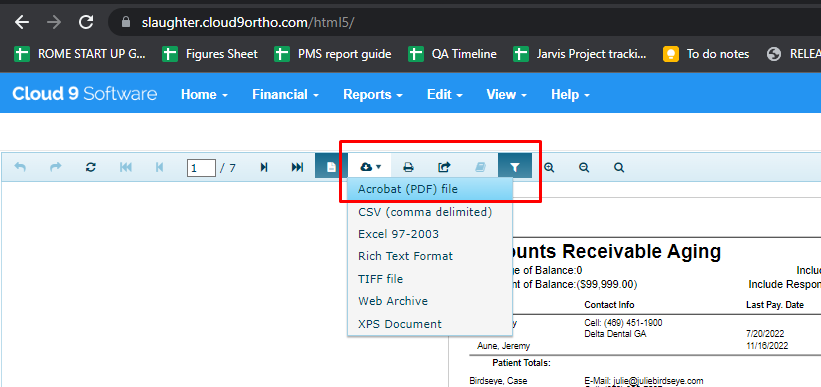
How to Read the Report
Go to the page where the words “GRAND TOTAL” appear; the data under this will be the office total, and the subsequent totals are the per provider total.
| Cloud 9 Production By Date Range | Jarvis Equivalent |
|---|---|
| Gross production | Total Gross production |
| Net Production | Total Net Production |
| -(Discount)+Adjustment | Total Adjustment |

Collections (Office Total and Provider Total)
To create the report in Cloud 9 that matches Jarvis’ Dashboard module, go to Reports > Receipts By Date Range. 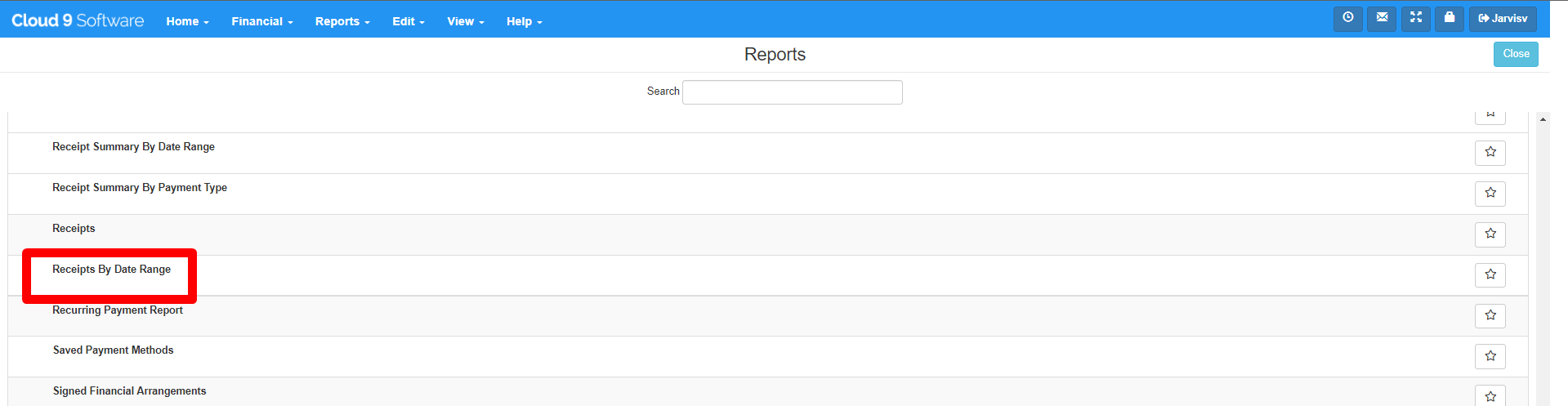
Set the following options:
- Date: Fill up the date.
- Location: Select the location you need to check.
- Provider: Select all providers for office total or specific providers as needed.

How to print the report
Click the cloud button and select Acrobat PDF File. 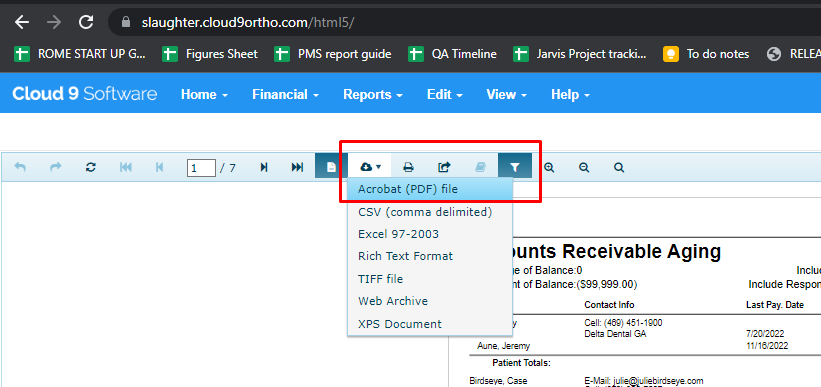
How to Read the Report
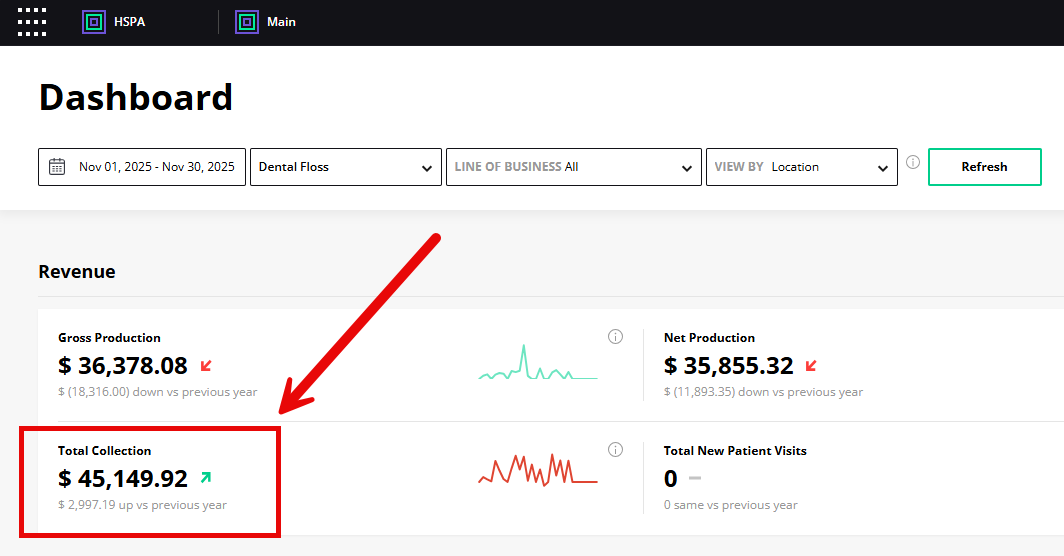
| Cloud 9 Receipts By Date Range | Jarvis Dashboard Equivalent |
|---|---|
| Totals for This Report | Total Collection |
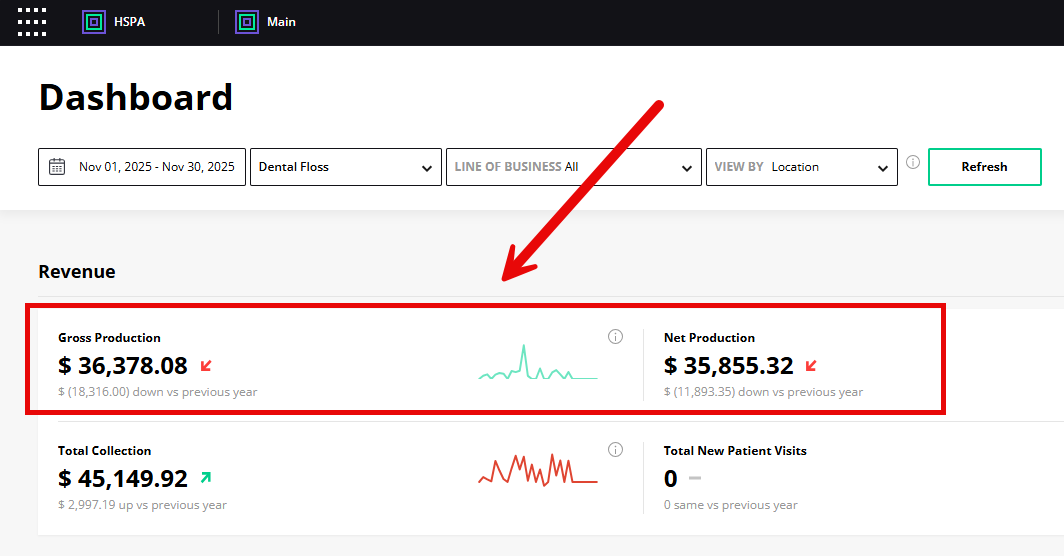
Gross and Net Production (Office Total and Provider Total)
To create the report in Cloud 9 that matches Jarvis’ Dashboard module, go to Reports > Production By Date Range. 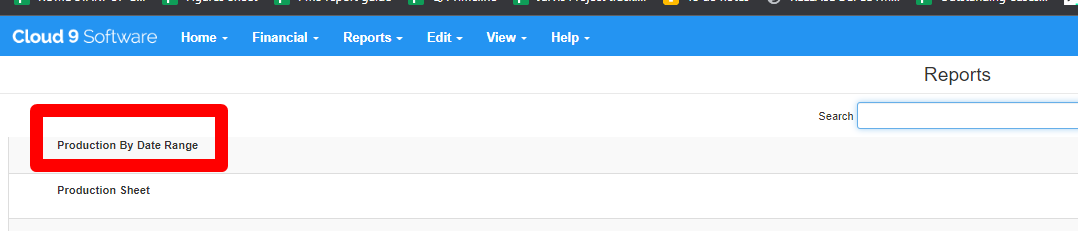
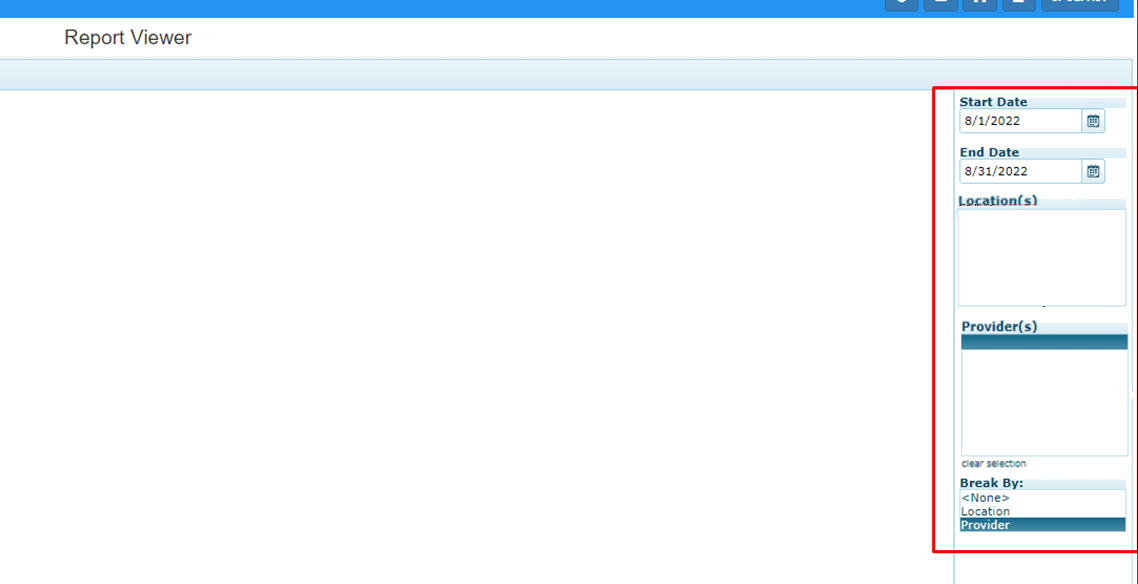
Set the following options:
- Date Range: Enter the date range you will use.
- Include MTD and YTD totals: Check this box.
- Include Provider Totals: Check this box.
- Chronological Daysheet: Check this box.
- Deposit Slip: Check this box.
How to print the report
Click the cloud button and select Acrobat PDF File.
How to Read the Report
Go to the page where the words “GRAND TOTAL” appear; the data under this will be the office total and the subsequent totals are the per provider total.
| Cloud 9 Production By Date Range | Jarvis Dashboard Equivalent |
|---|---|
| Gross Production | Total Gross Production |
| Net Production | Total Net Production |
Deposit Slip
To create the report in Cloud 9 that matches Jarvis’ Dashboard module, go to Reports > Receipts By Date Range. 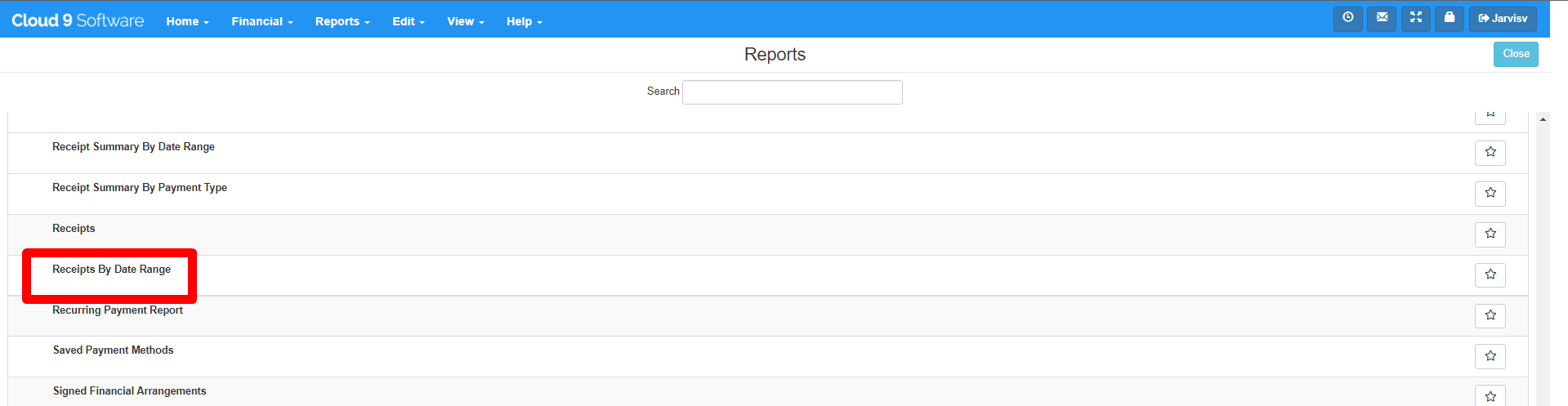
Set the following options:
- Date: Fill up the date.
- Location: Select the location you need to check.
- Provider: Select all providers for office total or specific providers as needed.
How to print the report
Click the cloud button and select Acrobat PDF File.
How to Read the Report
| Cloud 9 Receipts By Date Range | Jarvis Equivalent |
|---|---|
| Totals for This Report | Deposit Slip > Total Deposit |
